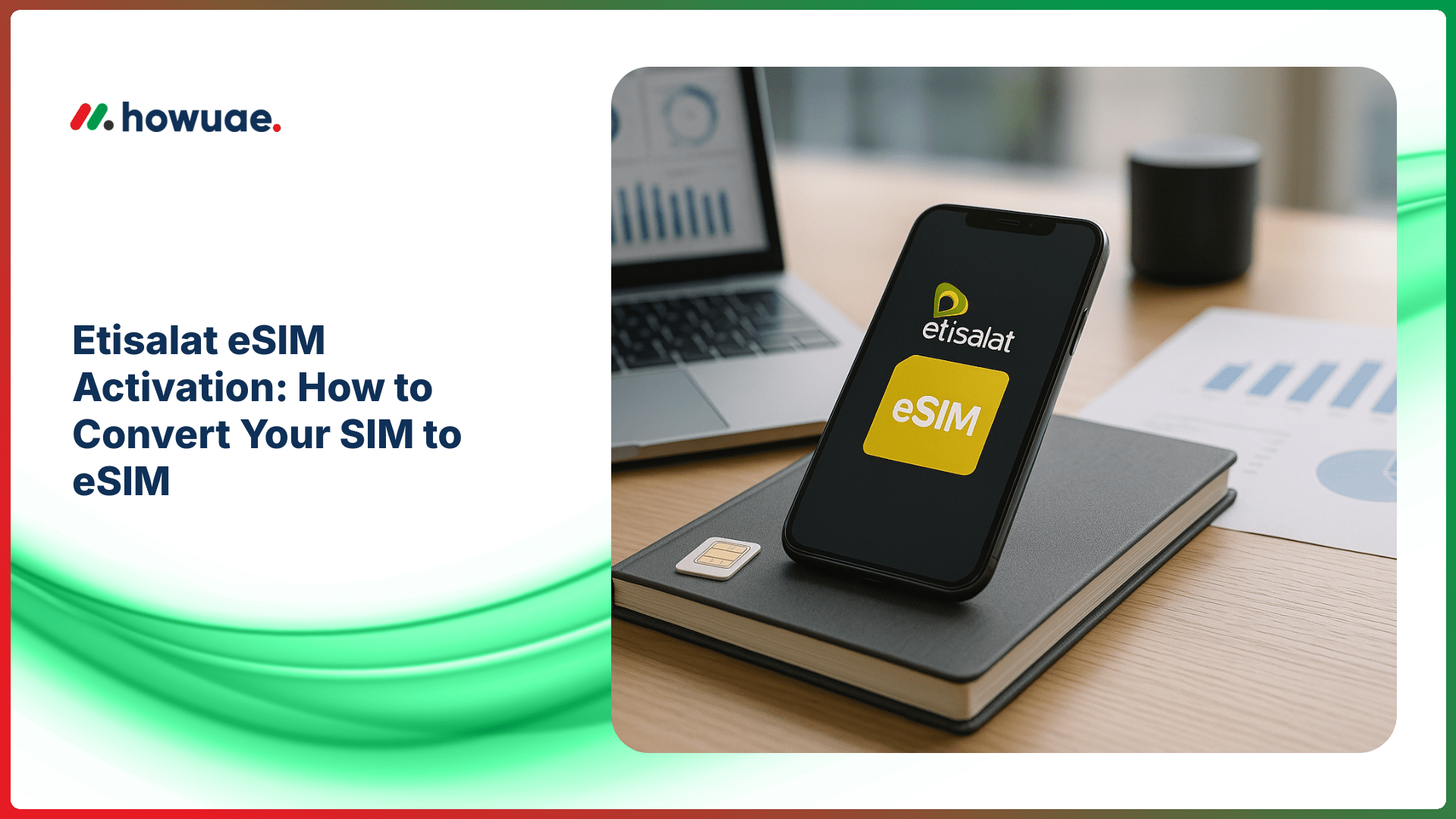
Switching to eSIM is one of the easiest upgrades you can make if you want a cleaner setup (no physical SIM tray swapping) and faster line changes. This guide walks you through Etisalat eSIM activation in the UAE, including eligibility, step-by-step conversion methods, device setup, and common fixes.
What is an eSIM (and why switch from a physical SIM)?
An eSIM (embedded SIM) is a digital SIM profile that’s downloaded to your phone instead of inserted as a plastic card. With Etisalat (e&), you can usually convert your existing number to eSIM or activate a new line on eSIM depending on your plan and device.
- No physical SIM needed: Useful if your SIM tray is damaged or you travel often.
- Dual SIM convenience: Many phones support one physical SIM + one eSIM (or even multiple eSIM profiles).
- Faster switching: Moving between lines can be simpler (especially for business + personal use).
- Better security: A stolen phone can’t be “SIM-swapped” as easily using the physical card.
Eligibility & requirements for Etisalat eSIM conversion
Before you start, make sure you meet these common requirements (exact rules can vary by account type, plan, and device):
- eSIM-capable device: Your phone must support eSIM and be compatible with UAE carrier eSIM profiles.
- Active Etisalat line: The number you want to convert must be active and in your control.
- Valid Emirates ID (often required): For identity verification when issuing an eSIM profile.
- Internet connection: Wi‑Fi is recommended during installation.
- Access to My Etisalat UAE app or a store visit: Depending on the issuance process available for your account.
Quick tip: If you’re unsure whether your line is active and in good standing, do an Etisalat balance check before converting to eSIM.
Devices that typically support eSIM
Most modern flagship devices support eSIM. Examples include (not a complete list):
- iPhone: iPhone XS / XR and newer (varies by region/model)
- Samsung Galaxy: Many S-series, Z Fold/Flip models
- Google Pixel: Many recent Pixel models
- Others: Select Huawei, Motorola, and other brands (model dependent)
To confirm eSIM support on your phone, check your manufacturer’s official documentation (for Apple, see the Apple eSIM setup guide).
Etisalat eSIM activation: 3 common ways to convert your SIM to eSIM
Method 1: Convert via My Etisalat UAE app (when available)
If the option is available for your account, using the official app is usually the fastest method.
- Step 1: Update the My Etisalat UAE app to the latest version.
- Step 2: Log in and select your mobile number.
- Step 3: Look for SIM management options such as “Replace SIM”, “Convert to eSIM”, or “eSIM”.
- Step 4: Complete identity verification (may include OTP/Emirates ID checks).
- Step 5: Receive the eSIM QR code (or in-app installation option).
Once you have the QR code, continue to the device setup steps below.
Method 2: Convert at an Etisalat/e& store (most reliable)
If the app option isn’t available, a store visit is the most straightforward. Bring:
- Your Emirates ID
- Your eSIM-capable phone
- Any account details needed for verification (especially for business lines)
After verification, the agent issues an eSIM profile and provides a QR code for activation.
Method 3: Request eSIM through customer support (availability varies)
Some users can request eSIM issuance via official customer support channels. You may be asked to verify identity and then follow an activation process similar to QR installation. Use only official Etisalat/e& channels listed on the Etisalat by e& official website.
How to install and activate the Etisalat eSIM on your phone
On iPhone (iOS)
After you receive the QR code:
- Step 1: Go to Settings > Cellular (or Mobile Data).
- Step 2: Tap Add eSIM (or Add Cellular Plan).
- Step 3: Choose Use QR Code and scan the Etisalat eSIM QR.
- Step 4: Confirm plan details and label your line (e.g., “Etisalat UAE”).
- Step 5: Set your default line for calls/data if you use dual SIM.
If the QR scan fails, ensure Wi‑Fi is stable and your iPhone is updated to the latest iOS version.
On Android (Samsung/Pixel and others)
Menu names differ by brand, but the flow is similar:
- Step 1: Open Settings > Connections (or Network & Internet).
- Step 2: Tap SIM manager or SIMs.
- Step 3: Choose Add eSIM / Download a SIM instead?
- Step 4: Scan the Etisalat QR code and confirm to download the profile.
- Step 5: Set your preferred SIM for mobile data and calls.
What happens to your physical SIM after conversion?
In most cases, once your eSIM profile is activated, the physical SIM for that same number is deactivated (to prevent duplicates). Keep the physical SIM only if the store/support tells you it remains usable; otherwise, treat it as inactive.
How to transfer your Etisalat eSIM to a new phone
Unlike a plastic SIM, you typically can’t just move an eSIM by swapping cards. You usually need to:
- Request a new eSIM profile (a replacement eSIM) for the same number.
- Remove the old eSIM from the previous phone after the new one is active.
- Re-verify identity (often required for security).
If you receive calls from unknown numbers during the process, you can cross-check suspicious activity using guides like identify who called me from this number UAE, especially if you suspect scam calls during account changes.
Troubleshooting: common Etisalat eSIM activation issues
1) “Unable to activate” or “Cellular plan cannot be added”
Try these quick fixes:
- Restart the phone and try scanning again.
- Use a stable Wi‑Fi connection (avoid public Wi‑Fi).
- Update iOS/Android to the latest version.
- Check that the device is not carrier-restricted/locked.
2) No signal after eSIM installation
Confirm the eSIM line is enabled and selected for mobile data. Then:
- Toggle Airplane mode on/off.
- Go to network settings and set Automatic network selection.
- Reset network settings (last resort; it removes saved Wi‑Fi passwords).
3) OTP not arriving / verification failing
Make sure your number can receive SMS, your inbox isn’t blocked, and roaming settings (if outside UAE) are correct. If verification is still failing, contact official support or visit a store for identity validation.
FAQs
Is Etisalat eSIM activation free in the UAE?
Fees can vary based on whether it’s a new line, replacement, or conversion and on current policies. Some conversions may have a SIM replacement fee. Confirm in the app or at the store during issuance.
Can I use eSIM and a physical SIM together?
Yes, many phones support dual SIM (one eSIM + one physical SIM). You can set defaults for calls, SMS, and mobile data.
Will my WhatsApp or banking apps stop working after switching to eSIM?
Your apps typically continue working as long as your phone number stays the same. However, some apps may re-check verification if you change devices or reset the phone.
Can I activate Etisalat eSIM while travelling outside the UAE?
It depends on whether you can complete the required identity verification and whether eSIM issuance is permitted remotely for your account type. If you’re travelling soon, it’s safer to convert before leaving.
What should I do before converting to eSIM?
Back up your phone, ensure your OS is updated, and confirm your line is active. If needed, review general UAE service guidance in UAE info resources and keep your Emirates ID handy for verification.
Final checklist (quick and practical)
- Device supports eSIM and is updated
- Wi‑Fi available for downloading the profile
- Emirates ID ready for verification
- QR code received via app/store/support
- Line enabled and set as default for data/calls (if needed)
Once completed, Etisalat eSIM activation gives you a modern, flexible setup that’s easier to manage—especially if you juggle travel, work lines, or frequent device upgrades.